






My newsletter redesign process, and a kit to do yours

Made for beehiiv builders Oct 23, 2026

Adam Schoenfeld

Hi, I'm Adam. This month I redesigned my newsletter on beehiiv: the weekly email and the site at posts.adamgtm.com. Agents did the building through Claude Code and beehiiv's MCP. I made the calls. Here's the tour, then everything I learned as files your own agent can read.

Jump to the kit

The tour

  1. The weekly email

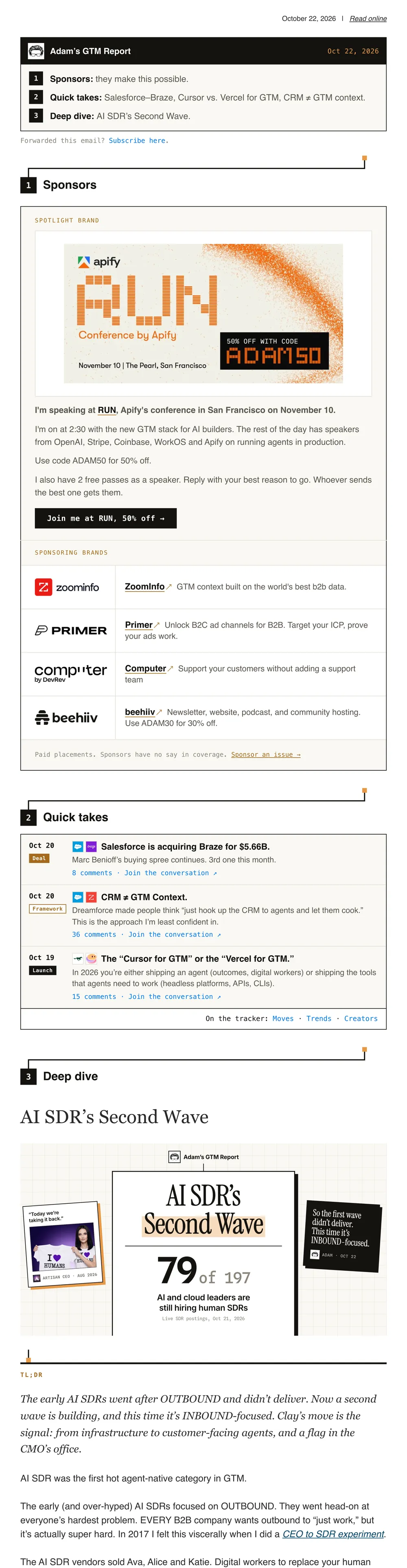
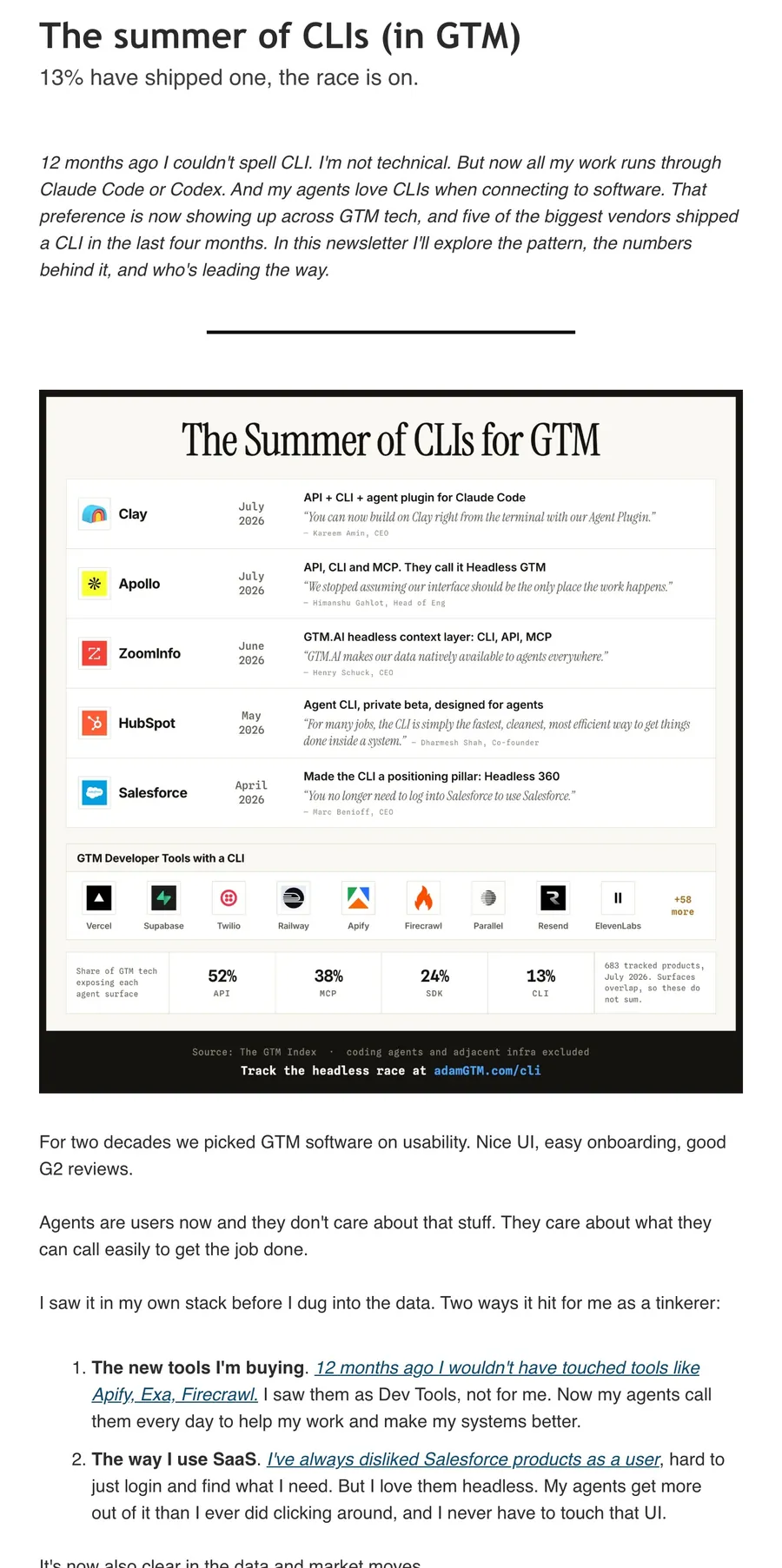
    A masthead with this week's agenda, the partner block, Quick takes from my LinkedIn posts, then the deep dive under its lead card.

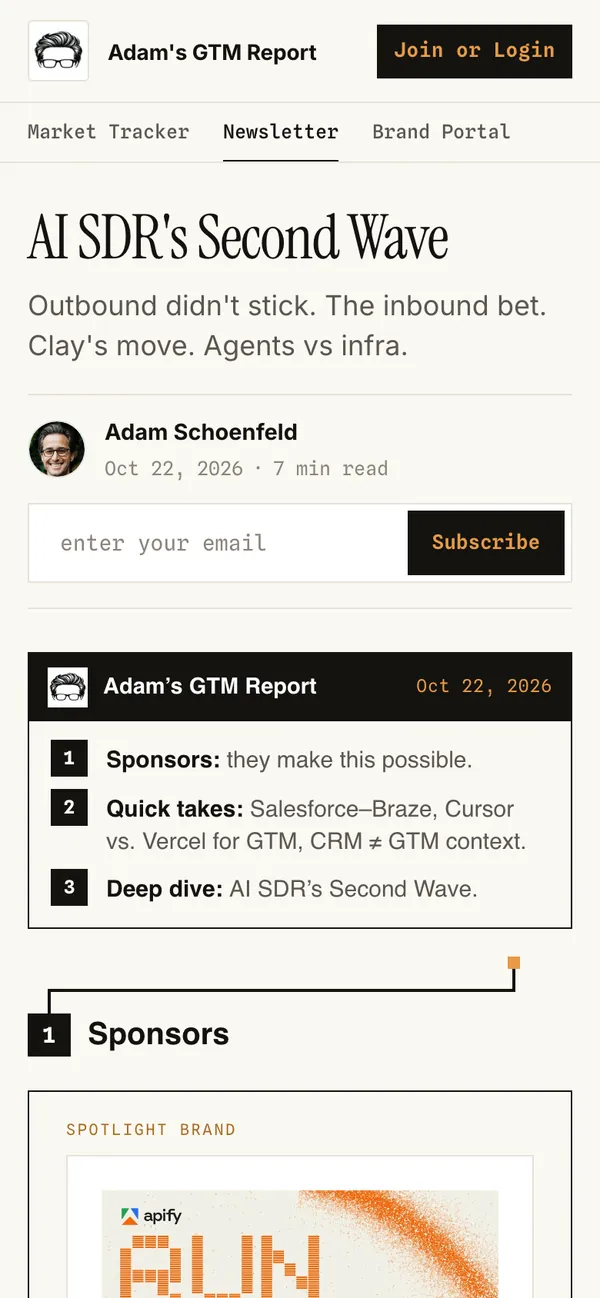
    The Oct 22 email as sent, at 700px: the ink masthead with a three-line agenda, the forwarded-reader line, the Sponsors section with a spotlight banner and partner rows, Quick takes as ledger rows with tags and logos, then the Deep dive under its lead card. The Jul 30 email before: the title, a one-line subtitle, then a long run of plain text.
    The same email at phone width.
  2. The newsletter's home page

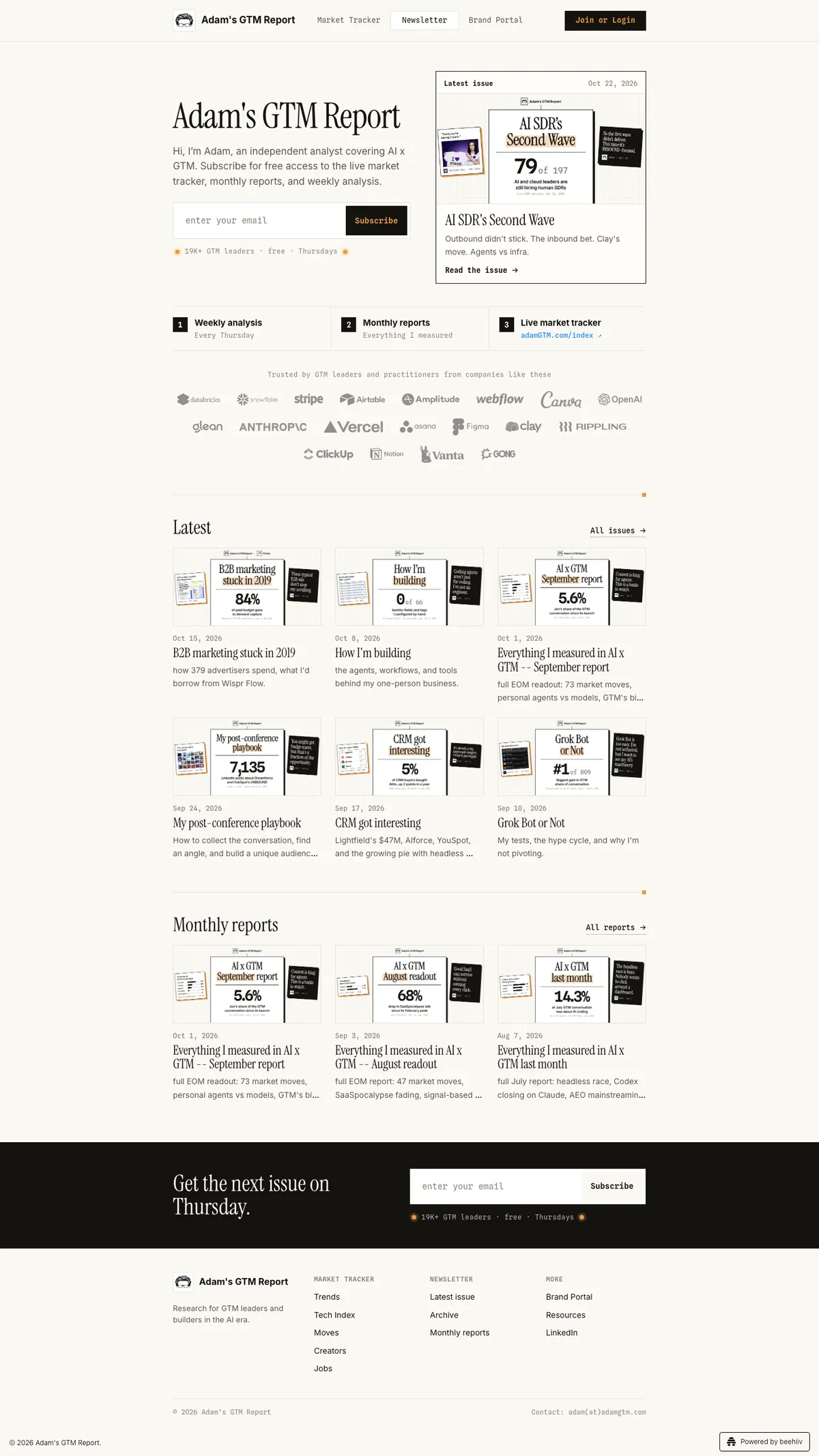
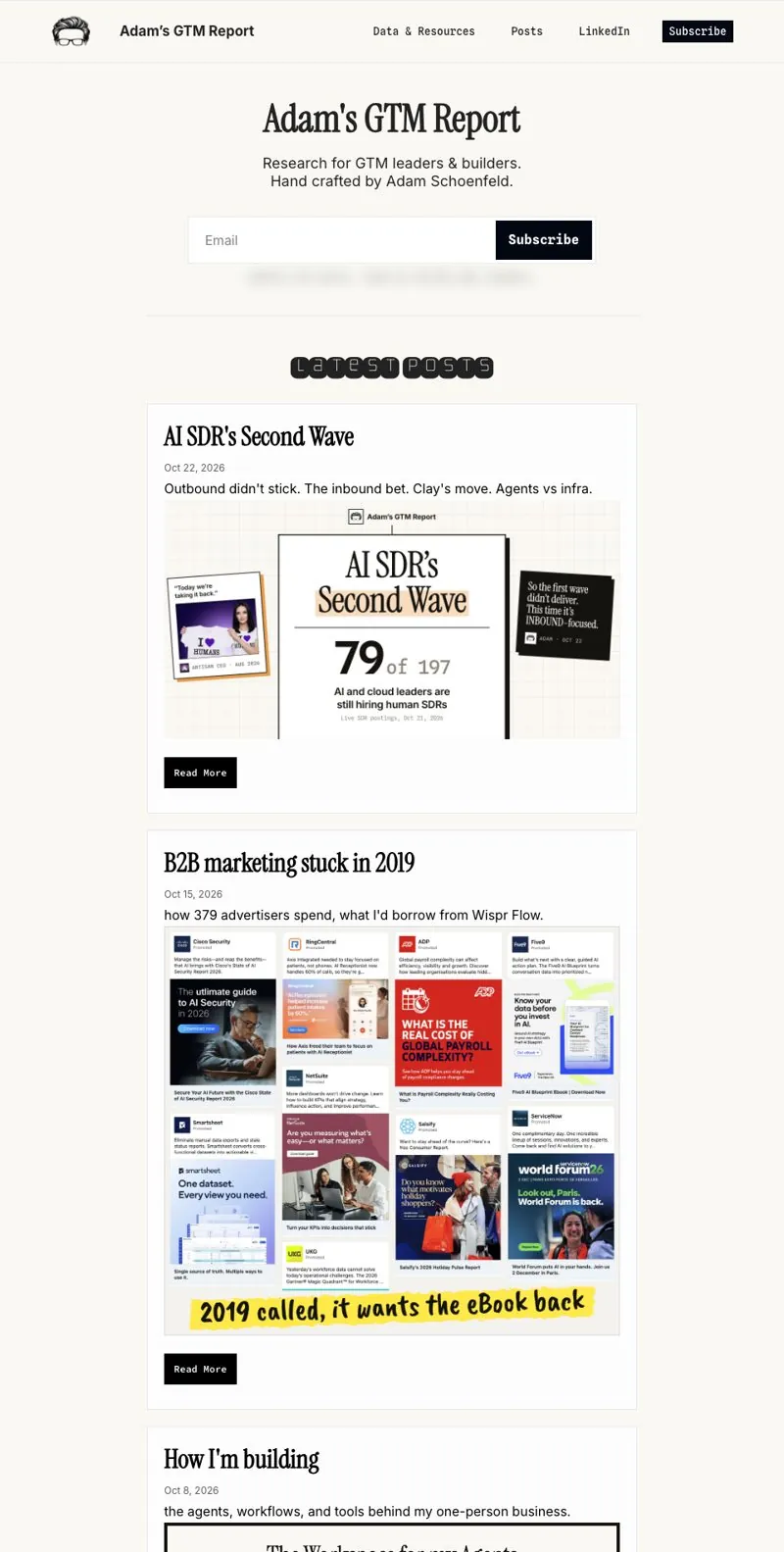
    Who I am and the signup up top, this week's issue beside it, then the latest issues and the monthly reports.

    posts.adamgtm.com today: the adamgtm.com header, a hero with the intro, signup and the latest issue card, three numbered tiles, a logo wall, Latest and Monthly reports grids, a dark closing band and the shared footer. The home page before: a centered title and signup, a pixel-font Latest Posts heading, and one tall card per post.
    The home page at phone width.
  3. The archive

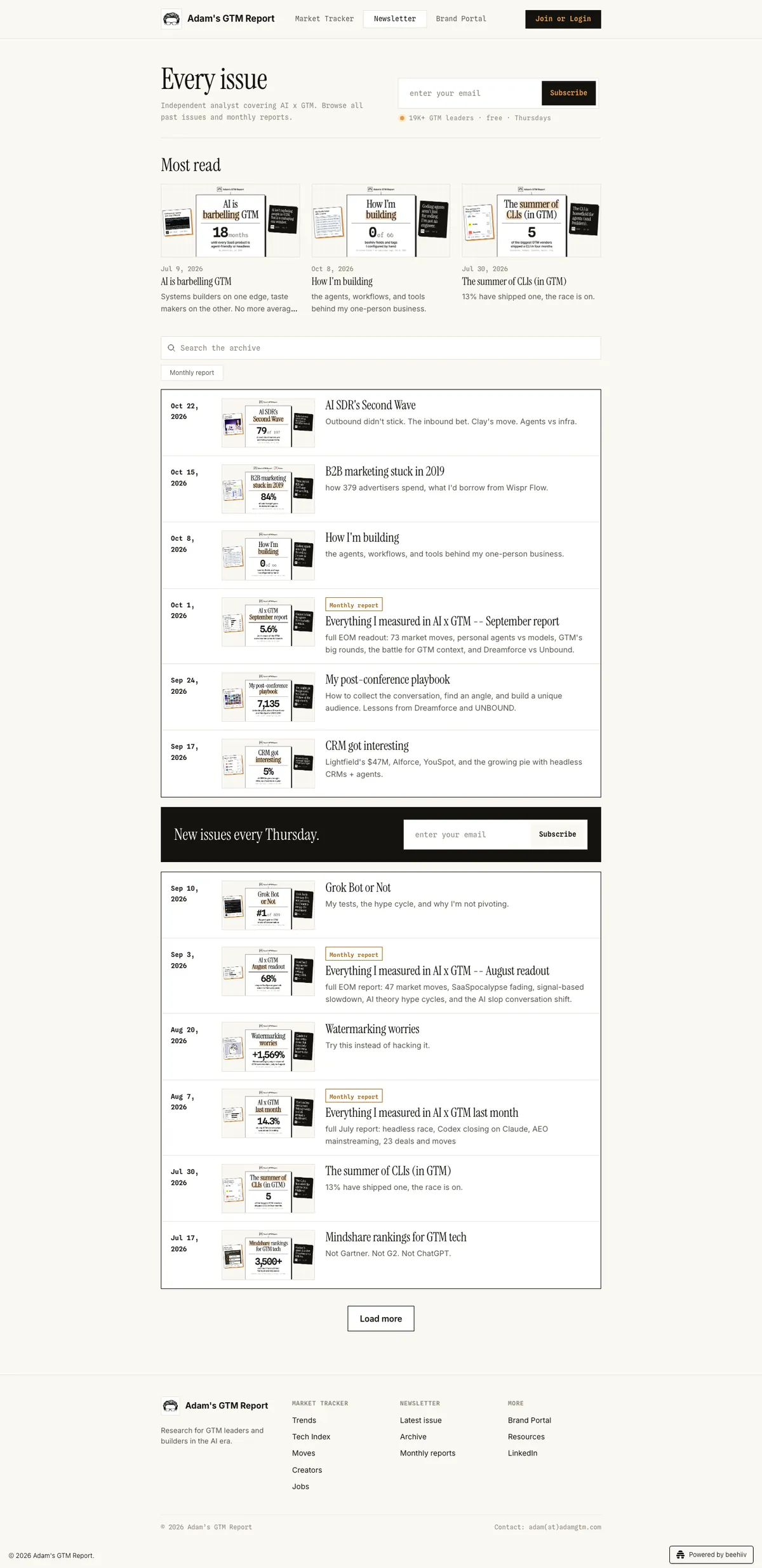
    The most-read issues first, then search, then every issue as one ledger with an ask in the middle.

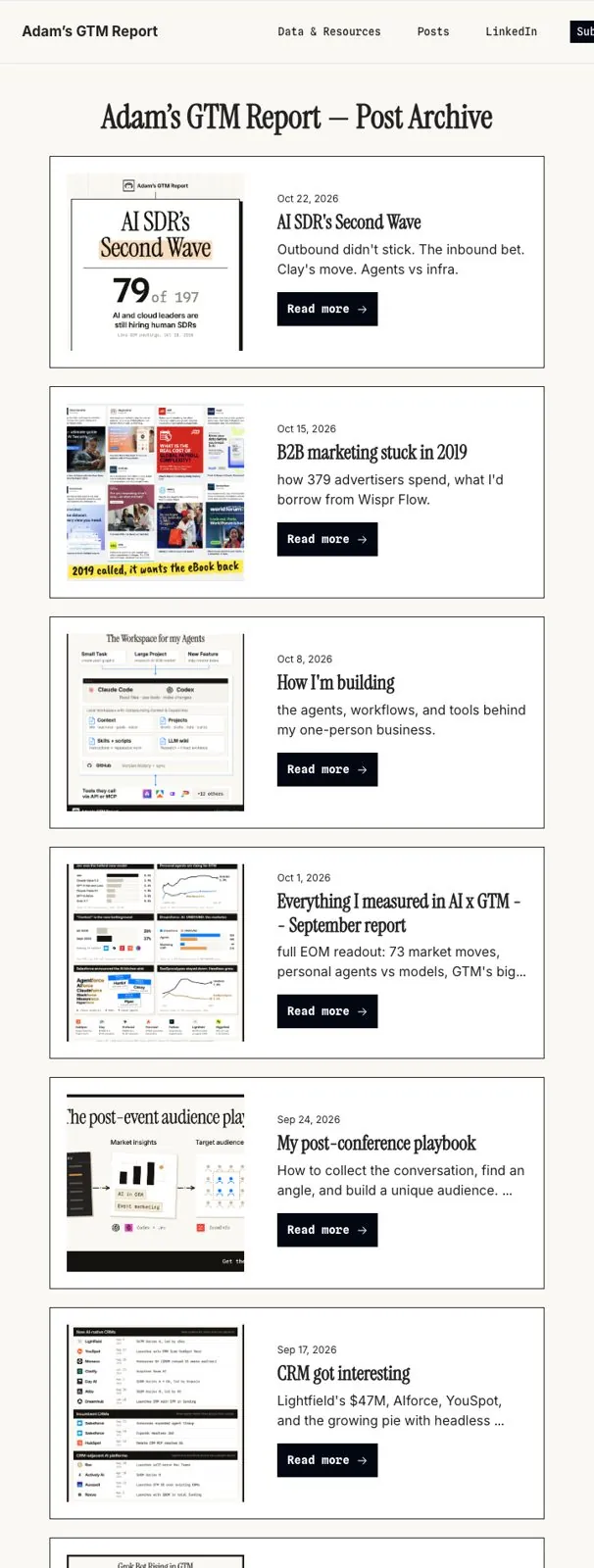
    The archive today: Every issue with a signup beside it, three Most read cards, a search field and a Monthly report filter, then ledger rows of date, lead card, title and subtitle, split by a dark band. The archive before: tall rows with square crops of thumbnails in mixed styles, and a Read more button on each.
    The archive at phone width.
  4. A tag page

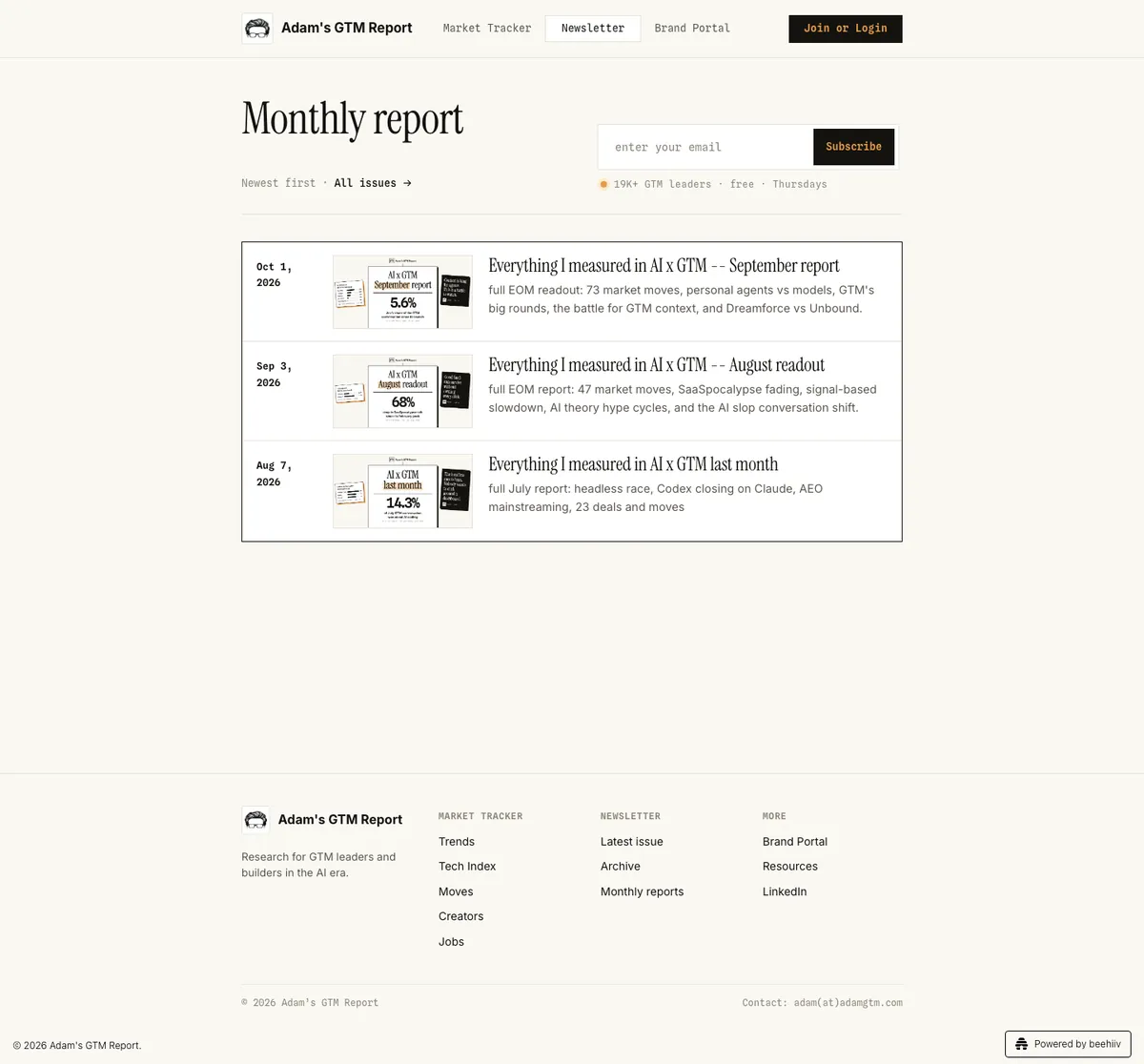
    One "Monthly report" tag gave me a home section, an archive filter and this page.

    New page

    The Monthly report tag page: a title, a signup, and the three monthly reports as ledger rows, newest first.
    The tag page at phone width.
  5. The top of a post

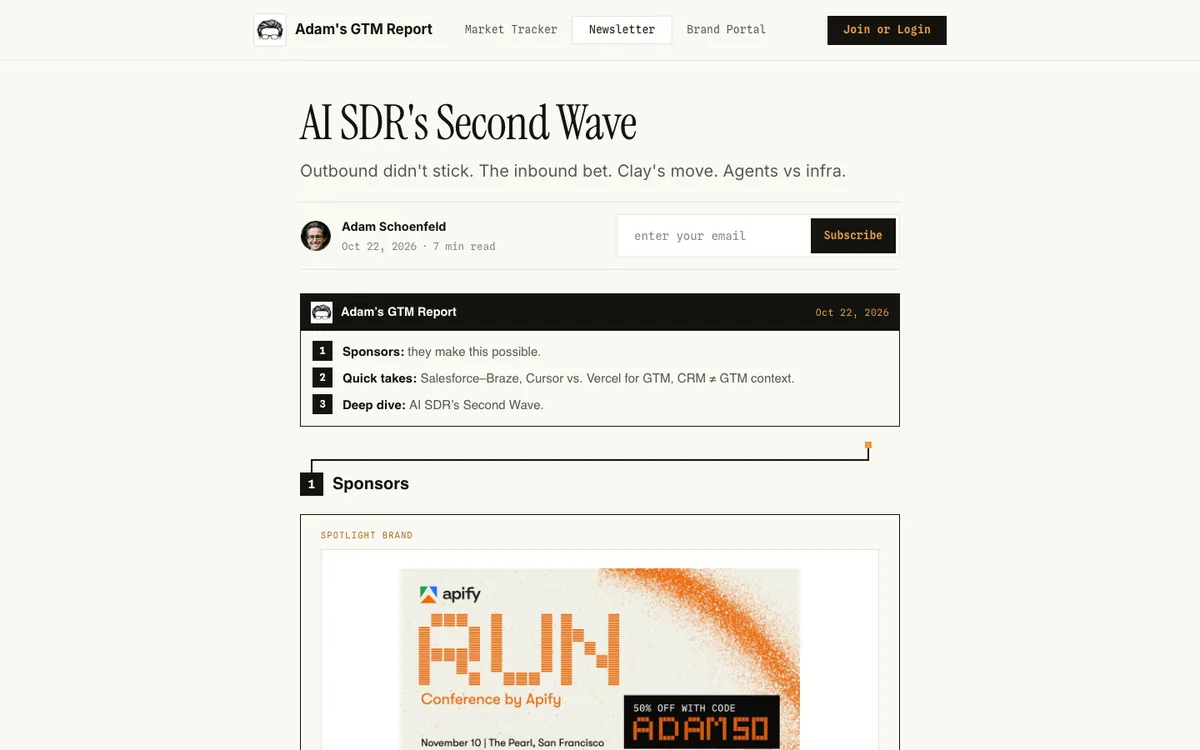
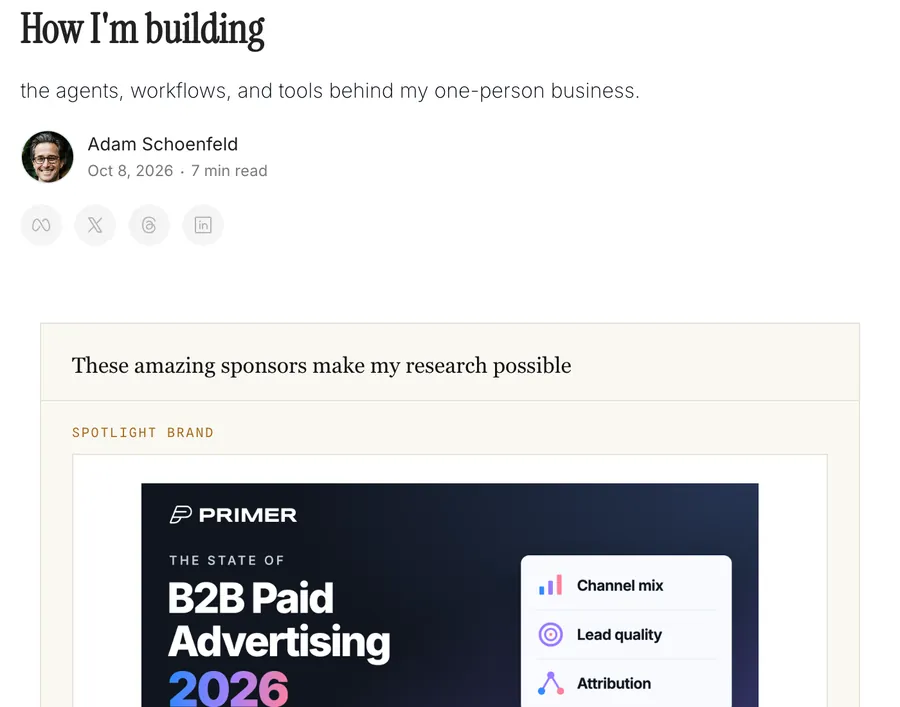
    The signup sits in the byline row, across from my name. It hides for subscribers who are logged in.

    The top of the Oct 22 post: title, subtitle, a byline row with Adam's photo on the left and an email field and Subscribe button on the right, then the issue's masthead. The top of the Oct 8 post before: title, subtitle, byline and four round share icons, with no signup.
    The top of the post at phone width, with the signup full width under the byline.
  6. The end of a post

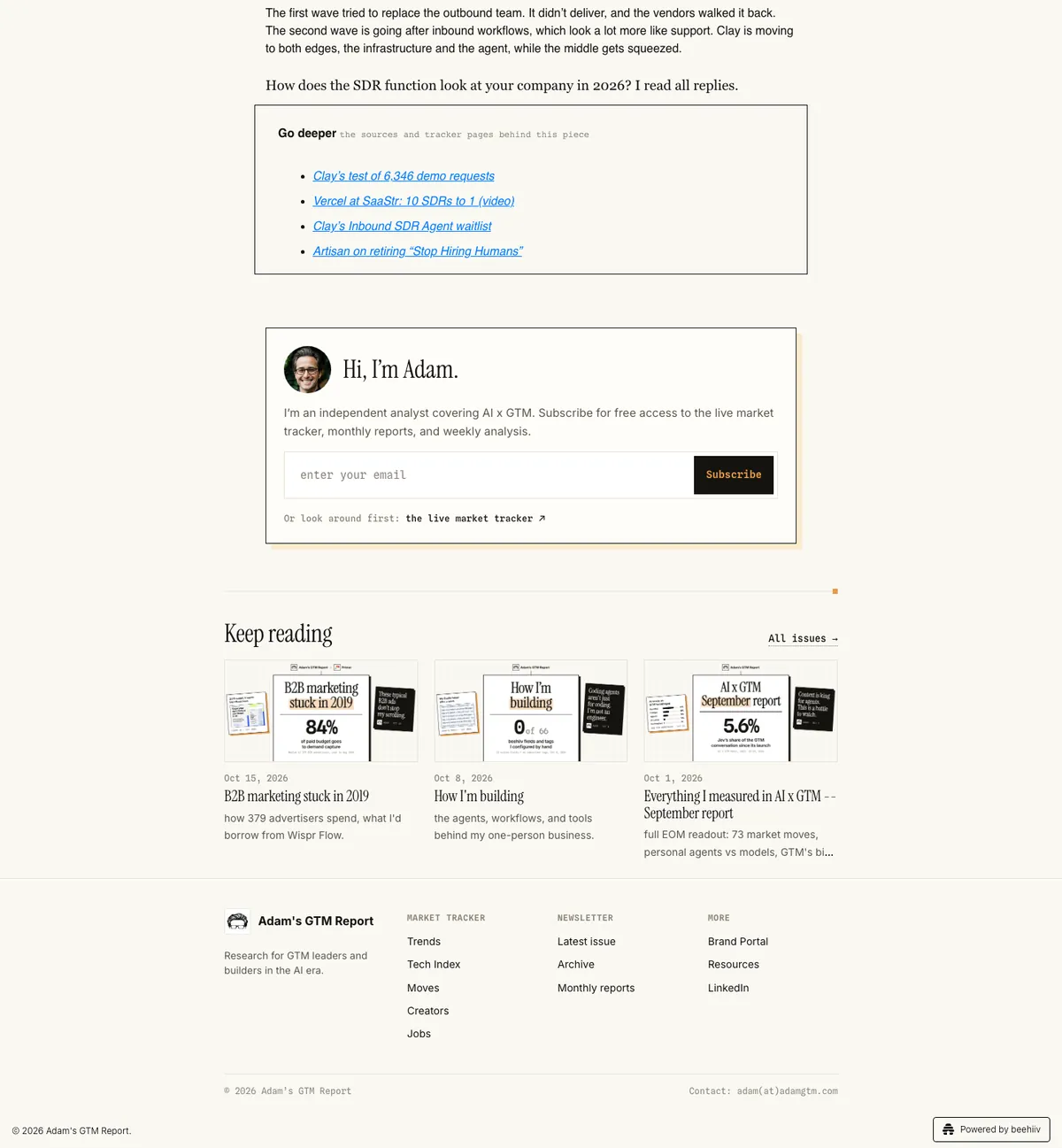
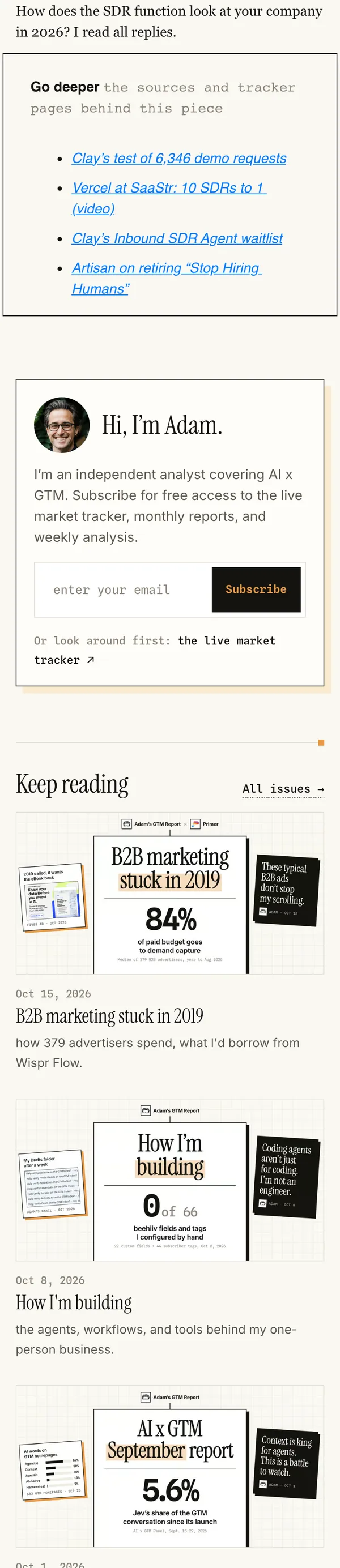
    A "Hi, I'm Adam" card with the signup, then the three latest issues and the shared footer.

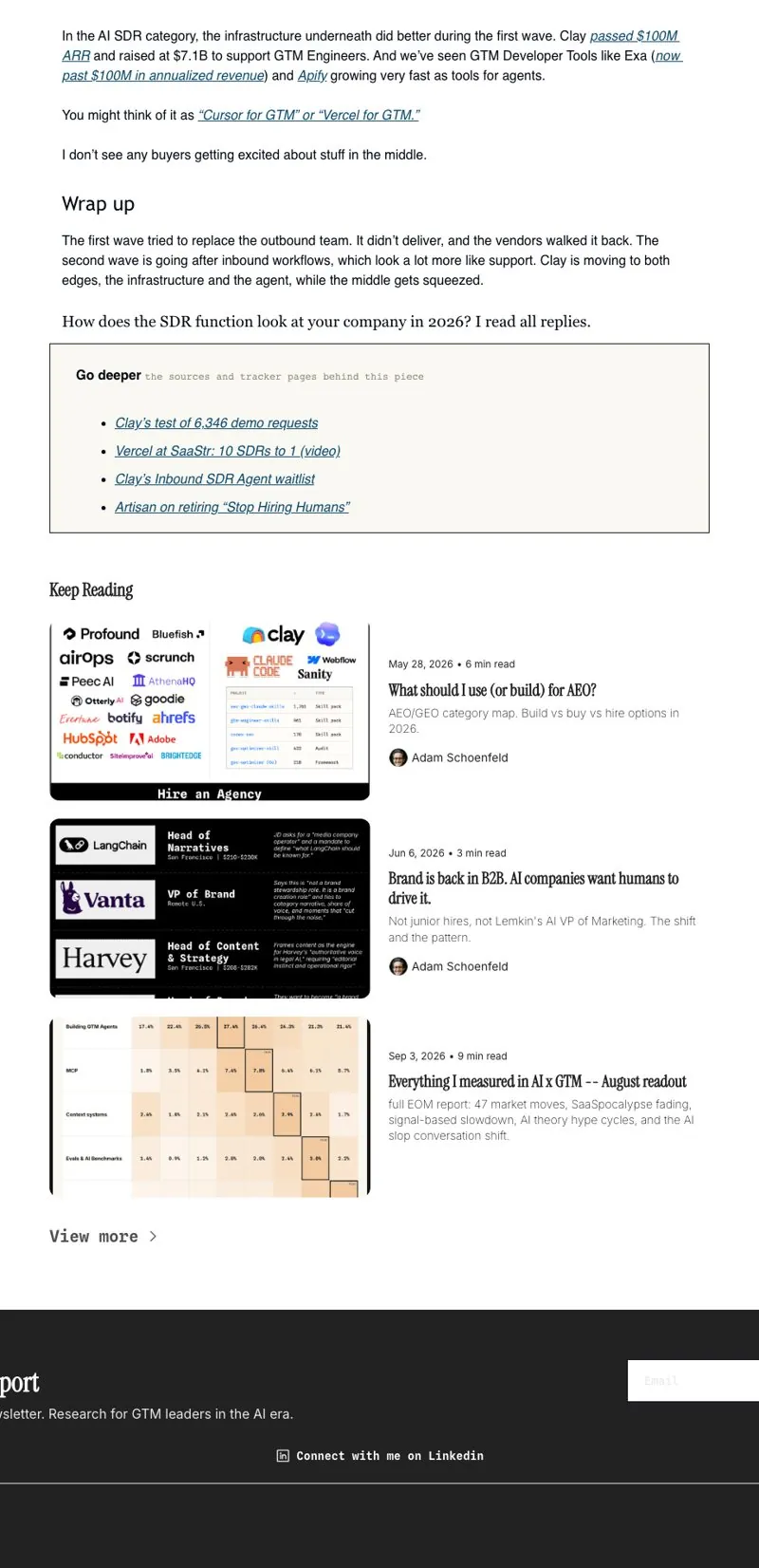
    The end of the Oct 22 post: Go deeper links, a framed Hi, I'm Adam card with a signup and a link to the market tracker, Keep reading with three lead cards, and the colophon footer. The end of a post before: a Go deeper box, Keep Reading with three older posts in mixed thumbnail styles, then a dark footer.
    The end of the post at phone width.
  7. Thumbnails

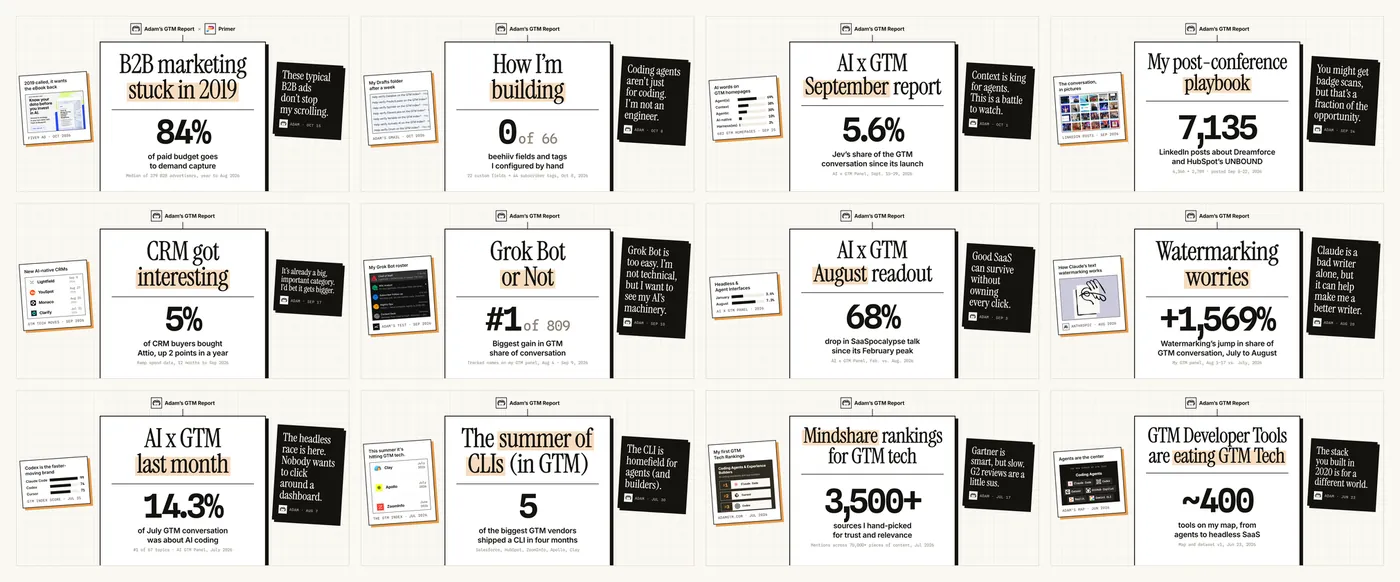
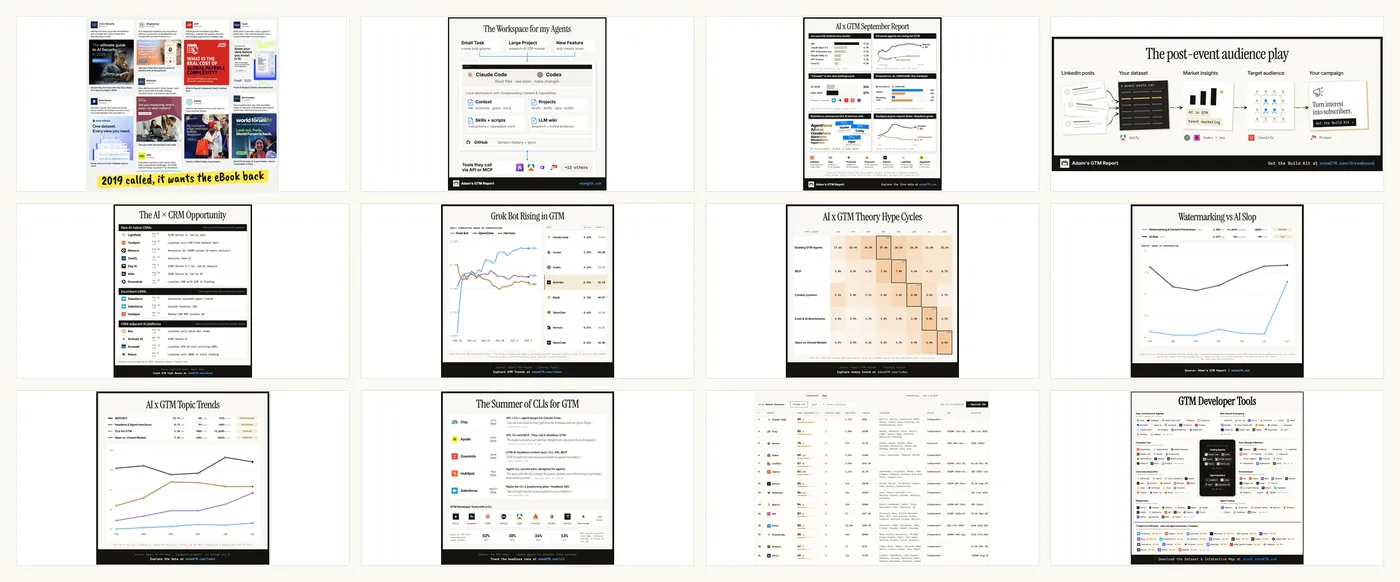
    Every issue's thumbnail is now its lead card, so the archive reads as one series. Same twelve issues in both views.

    Twelve lead cards in a grid: each has the logo on top, a white center card with the headline and one big stat, a tilted image card on the left and a tilted ink quote card on the right. The same twelve issues before: charts, tables, a photo, a sketch and screenshots, in every shape and style.
  8. Header and footer

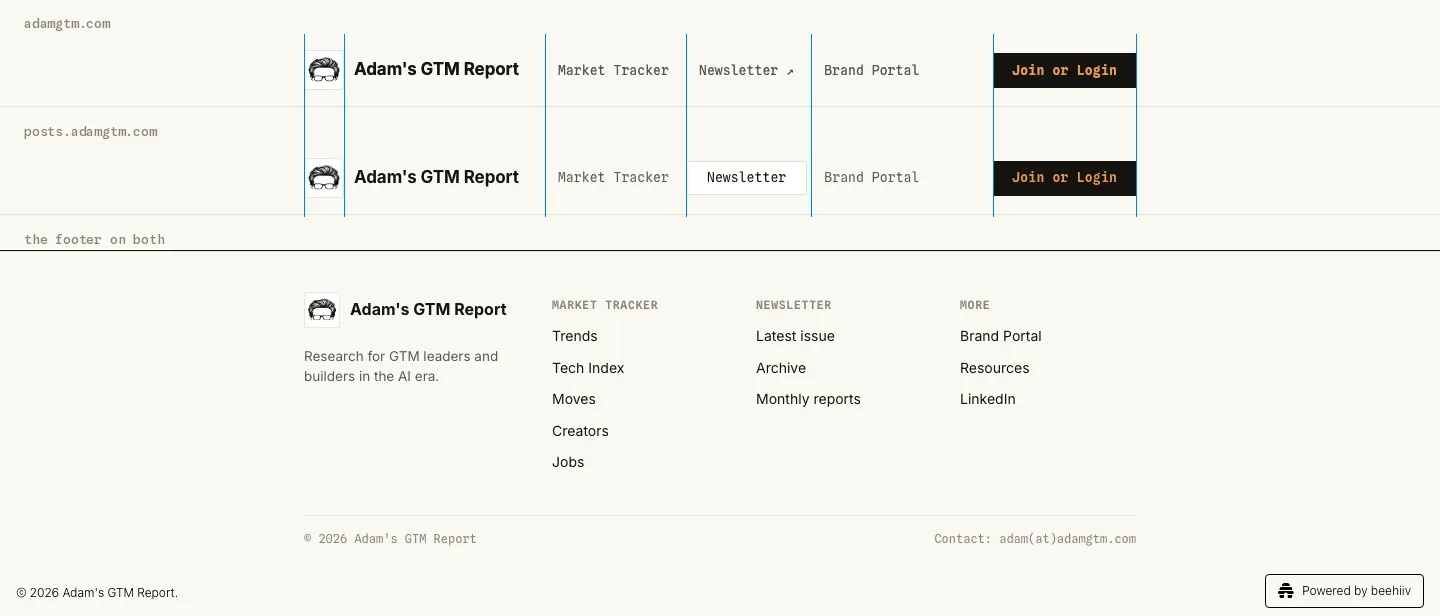
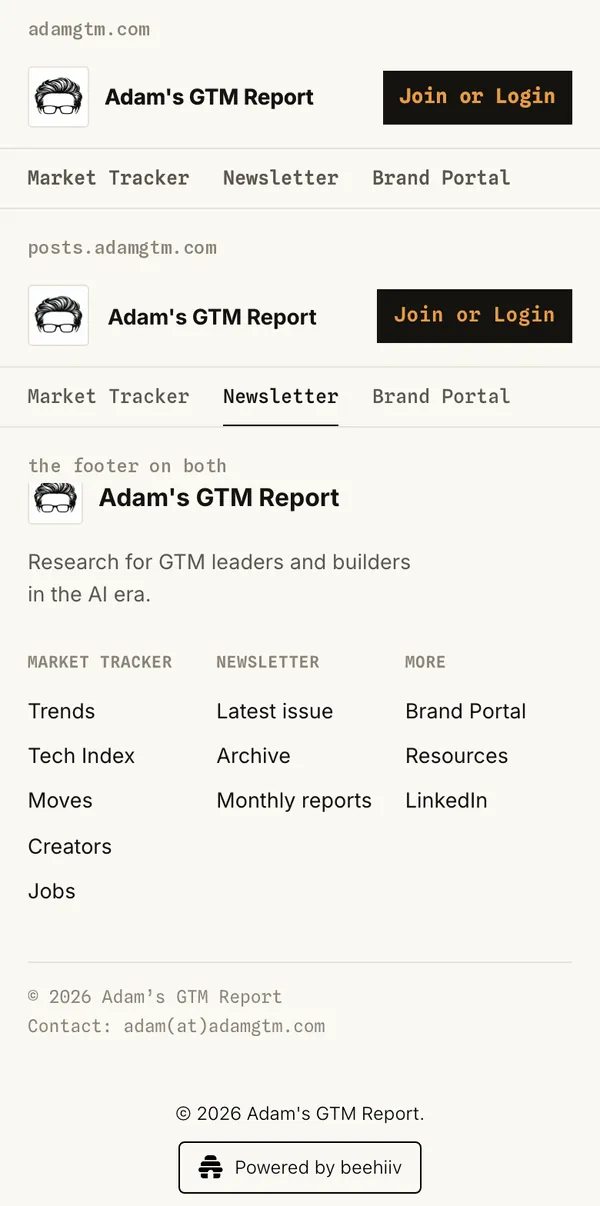
    The newsletter now wears adamgtm.com's header and footer. The blue lines mark the edges the two headers share.

    adamgtm.com's header above posts.adamgtm.com's header, identical, with blue lines on the shared edges, and the colophon footer both sites use. Before: adamgtm.com's header above the newsletter's old header, which had a bigger logo, different links and a different button.
    Both phone headers, two rows each with the sections as tabs, and the footer at phone width.

How I did it

  1. Role models

    Agents studied newsletters I admire at phone and desktop sizes: Strategy Breakdowns, Growth Unhinged, Big Desk Energy, The Rundown, Lenny's and Every.

  2. Options side by side

    HTML mocks at real sizes, with two or three options for each real choice, on one review page.

  3. My picks

    I answered numbered calls. Every pick became a lesson in my words, so the next round started from it.

  4. Built in the draft

    Agents built the pages, theme and template in beehiiv's draft through the MCP. Then I published.

  5. Measured

    Every page at phone, tablet and desktop widths, and every form clicked and typed in.

  6. I publish

    I publish in beehiiv. Then the agents check the live site again.

I got a solid redesign in two afternoons of work.

My LinkedIn post on the new email, Oct 22

The kit

Paste this into Claude Code or Codex

I'm redesigning my beehiiv newsletter: the email template, the website, or both. Adam Schoenfeld wrote up what he learned redesigning his. Fetch and read these four files first:

https://adamgtm.com/design-process/kit/01-redesign-process.md
https://adamgtm.com/design-process/kit/02-email-template.md
https://adamgtm.com/design-process/kit/03-site-builder.md
https://adamgtm.com/design-process/kit/04-thumbnails-and-checks.md

Use them as a guide while we work on mine. Find what you can through beehiiv's MCP before asking me, show me options side by side when there's a real choice, and measure pages at phone and desktop widths before calling anything done.

Work in beehiiv's draft. I publish, send and change live settings myself.

https://adamgtm.com/design-process/kit/01-redesign-process.md

01 · The redesign process

From Adam Schoenfeld (adamgtm.com). Part of a kit for beehiiv builders at https://adamgtm.com/design-process/. True as of October 23, 2026. beehiiv changes often, so check anything that looks off against its docs and tools.

In October 2026 I redesigned my newsletter on beehiiv: the weekly email, the website at posts.adamgtm.com, and a thumbnail for every past issue. Agents did the research, the mockups, the building and the checks, through Claude Code and beehiiv's MCP. I made the calls and published.

"I got a solid redesign in two afternoons of work." That's how I put it in my Oct 22 LinkedIn post about the new email.

This file is the process. The other three are what I learned on each surface:

For the agent

Use this kit as background. Follow the person's lead: they might start with the email, poke at one page, or want mocks right away. Bring in whatever helps at that point.

Habits that worked for me:

  • Find things out before asking. beehiiv's MCP can tell you the publication, its site builder, its pages and a recent issue. Look around the project for a house style. Ask only what you can't find, when it comes up in the conversation.
  • Show something. A rough mock, or a screenshot with a note, gets a better reaction than a question. When there's a real choice, put two or three options side by side and say which you'd pick.
  • Borrow from newsletters they admire. If they name a few, study them at phone and desktop sizes. If they don't, suggest some.
  • Do the legwork between their calls. Research, audits, mocks, building in the draft and measuring are yours. Come back when there's something worth reacting to, like a review page.
  • Keep live changes theirs. Publishing, sends, live-only settings and edits to published posts wait for their OK, each time. Work in beehiiv's draft (03-site-builder.md) and note rollback points before the first write.
  • Measure before calling it done (04-thumbnails-and-checks.md). Once a format sticks, help them make it repeatable.

The rest of this file is how my redesign went. Borrow what fits.

Role models

I started from newsletters whose design I admire. For the email: Strategy Breakdowns, Growth Unhinged, Big Desk Energy and The Rundown. For the site I added Lenny's Newsletter and Every.

How the agents studied them:

  • Pull recent issues and pages. Look at each at phone and desktop widths, the way readers see them.
  • For the site, go page by page: home, archive, a post. Note where each page asks for the subscribe, and when a popup fires (scroll depth or a timer). Note the type sizes and the reading column.
  • Write one line per role model on what to steal, and keep a list of what not to copy.

What I took: one thumbnail template so the archive reads as one series; an ask near the top of every post and a card at the end; a popup that waits until the reader is partway into the post, never one on a timer; numbered sections in the email.

What I left out: hard walls that block the post, timed popups, costume themes, art thumbnails that don't say what the post is about, and reader counts that disagree with each other.

Start from your house style

The newsletter had to look like the rest of my work, so every mock started from my house style: paper and ink, one serif headline, mono labels, square corners, gold as an accent. If you don't have one, build one first. My House Style Kit is free and walks you through it: https://github.com/adamgtm/house-style-kit

The review page

Each round ends in one HTML page that I can read in a few minutes. Mine had, in order:

  1. Where it stands: three or four lines.
  2. What I found: the audit, worst first, with screenshots of the current version.
  3. Role models: one screenshot and one line each.
  4. The mocks: each page at desktop and phone width, with a short note per part.
  5. Options side by side for each open choice, labeled A, B, C, with the agent's pick marked. Everything else holds still, so I'm only choosing the one thing.
  6. Your calls: numbered questions at the bottom, each with a recommendation. I answer by number ("1. A. 2. Colophon. 3. As built.").

After I answer, every pick gets saved as a lesson in my words, so the next round and the next redesign start from them.

How it went for me: the email took six rounds of mockups, then one more round after the first real draft. The site took two rounds. The thumbnails took one review page with the whole archive on it.

Which calls are the human's

The agent can research, mock, build in the draft, measure and keep notes. The human decides:

  • every design pick and any copy that goes out under their name;
  • what goes live: publishing the site, switching on the popup, live-only page settings, thumbnails or tags on published posts, and every send;
  • each week's content: which posts make the issue, the partner lineup and copy, the article;
  • any number that can't be traced to its source. It stays off the page until it can.

Agents should ask for each of these. Approval for one isn't approval for the next.

Make it repeatable

Once the format was locked, I turned it into skills. Now I write the article in Markdown. One skill builds the issue as a beehiiv draft: quick takes from my LinkedIn posts, the partner block, the deep dive and every image. Then it checks the email in light and dark mode at phone and desktop widths. I review the draft, send test emails to myself, and schedule the send.

Two files from my House Style Kit

https://adamgtm.com/design-process/kit/02-email-template.md

02 · The email template

From Adam Schoenfeld (adamgtm.com). Part of a kit for beehiiv builders at https://adamgtm.com/design-process/. True as of October 23, 2026.

My weekly issue has one locked format. A beehiiv post template holds the fixed parts. Each week an agent fills the slots from a short spec and my Markdown, then checks the email as readers will see it. This file covers the format, how it's built, the partner block, the traps in beehiiv's email render, and images.

The format, top to bottom

  1. Masthead. An ink title bar (my icon, "Adam's GTM Report", the date) and this week's agenda stacked under it, in one frame. It holds only what's true and useful to every reader every week. No welcome sentence.
  2. "Forwarded this email? Subscribe here." One small line, email only.
  3. [1] Sponsors. The partner block (below). The agenda line for it stays general ("they make this possible"); it doesn't list names.
  4. [2] Quick takes. My LinkedIn posts from the week as ledger rows: date, a tag, the logos of the companies the post features, the headline, a one-line take, the comment count and "Join the conversation". A footer row links my live market tracker.
  5. [3] Deep dive. The issue title as a real H1, the lead card (04-thumbnails-and-checks.md), a short TL;DR attached under it, the article as narrative, a reply question, then "Go deeper": a plain list of sources, one row each.

The system that ties it together: numbered square ink tiles for the section headers, a thin line with a gold dot connecting them, and every box in paper with an ink frame.

Rules I locked along the way:

  • One system. Every box shares one frame and one fill rule.
  • The deep dive stays narrative. I tried tabs inside it and cut them; I write in long form.
  • One lead graphic. A second infographic was one too many.
  • A section header replaces any title that repeats it. The partner block lost its own title row because "[1] Sponsors" already says it.
  • Tags say what a post is: Deal, Launch, Framework, or My take. Use the most specific one; "My take" on every row was too much.
  • Count lines in the render, not by eye. The agenda's Quick takes line fits two lines on a phone.

How it's built

Before the first issue. Check that your beehiiv plan has custom HTML blocks (htmlSnippet); the partner block depends on them. Have the agent read learn_post_authoring and learn_post_metadata: they say which markup survives a save, and unsupported markup can disappear without an error. Then build three things once and test them on a throwaway draft: your template, a small script that renders each slot, and the placeholders. Only then make issue one.

  • A beehiiv post template holds the masthead frame, the section headers, the footer and one placeholder paragraph per slot (masthead agenda, partner block, quick takes, each deep dive piece).
  • One small JSON spec per issue: title, agenda line, the quick takes (date, tag, logos, headline, take, comment count, URL), TL;DR, reply question, Go deeper links, the lead image. A script turns each slot into HTML. Plain-text fields get escaped; nothing is typed into HTML by hand.
  • The draft: create it from the template with save_post and post_template_id. Set the subject, and in the email settings hide beehiiv's own title, subtitle and byline so the masthead comes first. On the web, show the title and subtitle, and hide the thumbnail (the lead card is already in the body).
  • The slots: read the body with get_post_content(format="editor_html"), find each placeholder's block hash, and replace the slots with edit_post_content. Either send every change in one call from a fresh read, or send one call at a time using the new hashes each response returns. Never reuse hashes from an earlier read. If a placeholder is missing or matches twice, stop and look. Never guess a target.
  • The article: I write in Markdown. It's converted to beehiiv's HTML in chunks and inserted, after its images are uploaded (see Images).
  • The checks (end of this file). A draft with placeholders left is a scaffold, not a finished issue.

The title goes everywhere: subject line, masthead agenda and the deep dive's H1. The email hides beehiiv's title, so the issue needs its own H1. On the web that H1 repeats the page title, so hide it there with page CSS (03-site-builder.md).

The partner block

What readers see: one spotlight partner (a wordmark and a headline, or the partner's own banner) plus one to five partner rows, each a logo, a name and one line of copy, in the order I set. A week with no spotlight uses equal-weight rows instead.

How it's built:

  • A custom HTML block (htmlSnippet), tables and inline styles only. beehiiv's native table node drops inline styles and takes its borders from the post theme, so the design wouldn't survive as normal content. HTML snippets do render in email. beehiiv strips <style>, <script>, iframes, audio and video.
  • It fills its container. No width="600" cap. beehiiv's email shell already holds the body to 600px, and the web column is wider. With a cap, the card stopped short of the body text on the web.
  • Logos come from beehiiv's CDN, at the direct media URL (see Images). On the web, give them max-width:100%;height:auto. The web theme shrinks a wide logo to its cell, and a fixed height then stretches it.
  • A banner creative is wrapped in the partner's link, capped (400px wide read best for a 2:1 banner), and carries its own font size, so its alt text still shows when images are off.
  • Link a partner's name once. Linking every mention put six links to one URL in a single card.
  • beehiiv adds UTM tags to every link. A partner URL that already carries tags ends up with both sets.
  • Dark mode. Gmail on iPhone inverts the whole email. I tried two treatments:
  • Protect the light fills: every cell carries bgcolor, an inline background-color and a same-color linear-gradient; beehiiv's sanitizer drops the first and keeps the other two. Text needs the same trick (a gradient clipped through transparent text) or Gmail lightens it on the white you protected. It works, but it's heavy.
  • Logo plates (what I use now): let the block invert with the rest of the issue, and put only each logo on its own small protected white plate. Logos stay readable, everything else matches the issue, and the block got about 40% smaller.
  • Outlook for Windows ignores the fill trick. If a plate shows as a tight white box there, bake the white margin into the logo file.

The email CSS traps

Each one looked fine in the editor and broke in the email.

  1. What happened: beehiiv's email theme pads every <p> 12px top and bottom, and forces any link inside a <p> to italic navy with !important. What to do: use <div> for text in custom HTML.
  2. What happened: whitespace-only text between two tags is deleted. Sponsors:</b> <span>they rendered as "Sponsors:they". What to do: write &#160;, plus &#8203; where the line must still be able to break.
  3. What happened: height= attributes are stripped in email (the web keeps them), so a 6px color bar collapsed in email only. What to do: put the height inline in style, and give an empty cell &#160;.
  4. What happened: a minifier that collapsed >\s+< ate the &nbsp; spacers, because Python's \s matches the no-break space. It also welded neighboring words and links together. What to do: collapse whitespace only at block boundaries.
  5. What happened: a template created through the API got an auto-generated theme. What to do: compare it with a past post's theme (get_post_theme) before trusting it.
  6. What happened: body type (font, size, link style) comes from each post's theme, on the web too. What to do: change type in the template's theme, and send a test email first.
  7. What happened: native tables drop cell styles and align. What to do: style tables with the post theme's table tokens (save_post_theme): header fill, cell fill, borders, padding. Never set colwidth; it writes fixed pixels and breaks the phone layout.
  8. What happened: a Markdown blockquote became a decorative pull quote, and a single line break inside a paragraph collapsed to a space. What to do: use a plain paragraph for notes, and a real <br> for a line break.
  9. What happened: block hashes change on every edit, across the whole document. A stale target aborts the whole batch, so nothing applies. What to do: re-read editor_html right before writing, and land every change in one call.
  10. What happened: passing post_template_id together with html_content put my body after the whole template, below the footer. What to do: start a post bare, or create it from the template and fill its placeholders.
  11. What happened: custom HTML inside an email-only section is hidden on the web. What to do: use it on purpose (the "Forwarded this email?" line lives there).

Size

Gmail clips an email at about 102KB. My check fails anything over 100,000 bytes to keep a margin. On my issue about 39KB is fixed: beehiiv's head CSS (about 12.7KB), the masthead and section headers, the partner block and beehiiv's required footer. Each quick take costs about 3.9KB. In the article, each paragraph adds about 150 bytes of wrapper and each link about 230 bytes, because of the UTM tags. When an issue runs long, cut repeated links first, then secondary source links. Measure the bytes of the rendered email, not the editor. Near the limit, beehiiv's own size estimate in the editor is the final word.

Images

  1. What happened: save_image takes a public HTTPS URL and refuses file://. Sending an image as base64 through the model corrupted it: one flipped character, same length, silently broken. What to do: host the file at a public URL first. I put images on a temporary draft deploy (never production), pass each URL, then delete the deploy.
  2. What happened: a corrupt upload still returned a URL. What to do: check the response. Width and height of null means beehiiv couldn't read it; upload again.
  3. What happened: the resizer form of a beehiiv image URL (/cdn-cgi/image/...) adds a redirect and can serve WebP, which Outlook can't show. What to do: use the direct media URL.
  4. What happened: an old helper reduced graphics to 128 colors and muted the blues. What to do: upload graphics at their original quality. Downscale photos to about 1000px. Logos can be small, flattened PNGs.
  5. What happened: a link wrapped around an image block was flattened and lost. What to do: build image blocks in beehiiv's own figure markup, with the caption as a figcaption inside the figure, and put links in the caption.
  6. What happened: a company logo that couldn't be found came out as a gray letter tile. What to do: open every logo file before using it. Get the real mark from the company's site.

Check the email the way readers see it

  • Read the real themed email with get_post_content(format="html"). The editor and the web page hide the traps above.
  • Render it in a headless browser at 700px and 390px, in light and a simulated Gmail dark mode, and look at all four.
  • Headless Chrome's --window-size won't go below 500px wide; the page lays out at 500 and the screenshot shows the left 390, which looks like overflow that isn't there. Set a real viewport (Playwright does) or render inside a fixed-width container.
  • Full-page screenshots repeat after 16,384 device pixels. Capture a long issue in segments.
  • Then the human sends test emails: Gmail on iPhone in dark mode, Apple Mail, Outlook, and Gmail with images off. That's the only real inbox check.

https://adamgtm.com/design-process/kit/03-site-builder.md

03 · The site, through beehiiv's MCP

From Adam Schoenfeld (adamgtm.com). Part of a kit for beehiiv builders at https://adamgtm.com/design-process/. True as of October 23, 2026. beehiiv ships often; when a tool's own description disagrees with this file, trust the tool and test.

posts.adamgtm.com runs on beehiiv's advanced builder. beehiiv also has a simpler website builder made of presets, where you can only override copy, images and links. The MCP tools tell you which one a site is. Everything below is about the advanced builder. My agents built it through the MCP from Claude Code. The scroll popup's design and a few live-only switches were done in beehiiv's website builder (gotchas 2 and 15).

What I changed: the header (now the same as adamgtm.com, to the pixel on desktop), a phone header, the home page, the archive, a tag page, the post page (a signup in the byline row, a "Hi, I'm Adam" card at the end, "Keep reading"), the theme, the signup and login modals, the footer, and the scroll popup.

What works

  • Read the rulebook first. learn_site_design and learn_page_authoring explain the node types, the builders and the design rules a save is checked against. Then read what's there: get_site, get_site_global, get_page_content.
  • Small, targeted edits. save_page_content takes either a whole-page design or operations against nodes you read (set_attrs, replace, insert_before, insert_after, delete). Use operations. A save is charged only for the rule violations it adds, so a one-attribute change passes on a page that already breaks rules, while a full redesign has to satisfy all of them.
  • The right tool for each layer: save_site_theme for tokens (colors, fonts, borders), save_site_global for the navbar, footer and the login and signup modals, save_page_content for page bodies, edit_post for post metadata (tags, authors, thumbnail).
  • Custom HTML blocks (embed) for what the blocks can't do. Mine hold small scoped CSS, the numbered tiles and logo wall on the home page, the phone tab strip and the footer.
  • Content tags make sections. One "Monthly report" tag gave me a home section, an archive filter and a tag page at /t/monthly-report.
  • Rollback points before the first write. List the site and page versions (list_site_versions, list_page_versions) and write down the ids. restore_version takes a site version (globals, theme, modals and the pages it covers) or a page version (one page's body). Post metadata isn't versioned; note the old values yourself.
  • Preview the draft before publishing. get_page returns a draft preview URL. Open it once in the browser your agent drives: it sets a cookie, and from then on your live domain renders the draft site. Hide the "Draft Preview" bar (the first child of <body>) before you measure, and don't share the URL. After publishing, check the live site in a new browser context without that cookie, or you'll still be looking at the draft.
  • Measure against your main site. My header matches adamgtm.com within 0.1px on every edge at 1440 and 1000px wide. Measure edges in the browser; don't compare screenshots by eye.

Gotchas: what happened, what to do

Draft and publish

  1. MCP edits land in the draft. A human publishes. What happened: every write to pages, the theme, the navbar, the footer and the modals went to the draft; none of it was live until I published in beehiiv's website builder. Gotchas 2 and 3 are the exceptions. What to do: build and check everything in the draft, then hand over a list of what's pending. Publish all pages: I never confirmed whether publishing one page also promotes the theme, modals and navbar.
  2. Some page settings write live, not draft. What happened: edit_page changes the page record directly. My agent switched the home page's footer on to test it, and it showed on the live old home page within seconds. It switched it back about 18 seconds later. What to do: treat edit_page as live. Leave settings like show_footer for the human to flip at publish time.
  3. Post metadata on published posts goes live. What happened: tags, authors and thumbnails set with edit_post showed on the live site without a publish (the home feed caught up after its cache). What to do: get the human's OK before touching a published post, and record the old values first.
  4. Saving the theme can reset navbar colors. What happened: one save_site_theme call (background and border colors only) cascaded into the draft: the navbar's link and brand colors went to the theme default, the footer and modals took the new tokens, and every page background changed. What to do: do theme changes first. Then check every global and restore what moved. On items you color by hand, turn off theme token binding so the next theme save leaves them alone.
  5. Cached pages lag behind changes. What happened: after a change went live, beehiiv's CDN kept serving copies of two posts cached before it (their cache header allowed up to 30 days). Those copies still had the old settings. What to do: check each change on a fresh load of several posts, not one. In my case a per-post edit refreshed that post's cached copy within minutes; the other post caught up on its own.

Header and navigation

  1. The mobile navbar holds one menu. What happened: the navbar has independent desktop and mobile trees. The desktop tree can take a second row; the mobile tree can't, and a second mobile menu is refused. My site's phone header has two rows (name and button, then the three sections as tabs). What to do: keep the navbar to one row on phones and add the second row as a phone-only HTML embed at the top of each page.
  2. What happened: a navbar link item ignores background and border colors. What to do: make it type: "button" with onClick: "link" and an href, and it takes a fill.
  3. What happened: the subscribe control was refused on save. What to do: it needs action: "sign_up" and onClick: "action" together.
  4. What happened: the phone menu panel was see-through. What to do: set navbar_menu_burger.contentBackgroundColor.
  5. What happened: the desktop tree applies above 768px, and there's no breakpoint in between. Just above 768px my full desktop bar runs up to 50px too wide. What to do: keep the desktop bar short enough for about 770px, or accept the gap.
  6. What happened: the rulebook refused a navbar link to /archive labeled "Newsletter". What to do: a link to /archive must say "Archive". Point "Newsletter" at the home page.

The post page

  1. A signup form inside the post header renders as a non-working copy. What happened: I put the signup in the byline row, inside postHeader. beehiiv renders signups inside the post header (and other card templates) as a static copy: pointer-events-none, no form, no submit. It looked perfect in screenshots. A reader couldn't click it. What to do: put the real signup as a top-level node in the reading section, right after the header, and move it into the byline row with page CSS. Test every form by clicking and typing in it.
  2. Post body type comes from the email theme. What happened: the web body uses each post's email theme (my old one: Helvetica 16px, italic navy links). The site sets only text color, link color and the reading width on postContent, and the rulebook requires all three. What to do: set those three on the site. To change the font or size, change the email template's theme, and send a test email first, because it changes the email too.
  3. Fixing the post body's padding. What happened: beehiiv pads every email block 15px on each side, so on the web the body sat inset from the title and byline row. I noticed the byline row looked wider than the post. What to do: cancel that padding on the web with a scoped style rule in an HTML block on the post template, then measure that the body's left and right edges match the header's.
  4. The scroll popup needs a per-post switch. What happened: the popup's design lives in the post page's document settings, which the MCP can't write, so its design is built in beehiiv's builder (Post page, Layers, Popups, Email Capture). Switching it on is a publication setting, live on every post at once. Each post also has its own setting (email_capture_type_override: none, gated or popup) that beats the default. After I switched the popup on, two posts' cached copies still had it off. Setting one post's override to "popup" refreshed its copy in about two minutes; the other refreshed on its own. The API can't set a post back to "follow the default" afterward. What to do: after switching it on, load your top posts fresh, scroll past halfway and confirm the popup opens. Use the per-post switch only where you need it, knowing it sticks.
  5. What happened: beehiiv adds a sticky back, heart and share bar to posts; the heart showed zero likes. Its switch lives with the popup, in the builder only. What to do: switch it off in the builder (Post page, Layers, Post actions), or hide it with a scoped style rule.
  6. What happened: some post page nodes can't be removed. postComments stays even with comments off. recommendedPosts can't be deleted or swapped. What to do: leave postComments (it renders nothing with comments off). Use recommendedPosts as a container: it can hold a heading, an end card and any post feed.
  7. What happened: a latest feed leaves out the post you're reading, so "latest 3" showed two on the newest posts. What to do: ask for 4 and hide the fourth with CSS.
  8. What happened: posts with no author attached showed an empty byline. What to do: attach authors with edit_post (user_ids). Check older posts too.
  9. What happened: my email carries its own H1 because the email hides beehiiv's title, so on the web the title showed twice. What to do: hide the in-body H1 on the web with a scoped style rule.

Home and archive

  1. What happened: the home page has required parts: an H1 bound to the publication name, the publication description, a signup (warned if it's not in the hero), a featured feed and an archive feed, and sections anchored featured-posts and archive-posts. What to do: keep them when you redesign. Small operations pass on a page that lacks some; a whole-page design must have all.
  2. What happened: archive search and the tag filter work only on the first archive feed on a page. My archive has two feeds with a band between them. What to do: while someone searches or filters, hide the band and the second feed with scoped CSS.
  3. What happened: only archive feeds take an offset, and an archive feed draws a "Load more" link. What to do: use an archive feed with an offset for "the rest after the first six", and hide its Load more where you don't want it.
  4. What happened: card rules bit. A card image needs aspectRatio and objectFit, or heights go ragged. Repeating a merge tag in one card renders nothing. Absolute positioning doesn't survive inside a card. One hover effect per feed. What to do: set the image ratio to your thumbnail's own (see 04-thumbnails-and-checks.md) and keep cards simple.
  5. What happened: containers without a backgroundColor got painted the theme color. On phones, children inherited a parent's border, and text got 4px of extra padding. What to do: give every container a background. Set mobileBorderStyle, mobileBorderWidth and mobilePadding where you care. The rulebook also wants a mobileFontSize on display text of 44px and up.
  6. What happened: there's no merge tag for the subscriber count, so my old home page showed a hand-typed count that had gone stale. What to do: use a rounded floor with a plus sign, which stays true as the list grows, or no number.

HTML blocks and CSS

  1. What happened: scoped CSS in an HTML block works. Global resets and position: fixed don't. The editor caps a block at 50,000 characters, and scripts run only in the preview and on the live site, not in the editor. What to do: keep CSS small and scoped. Don't build sticky bars.
  2. What happened: my style rules target beehiiv's own markup in a few places (the share buttons, the Load more link, the sticky bar's form), which a beehiiv release can change. What to do: scope every rule to a section anchor or to beehiiv's markup, so a selector that stops matching leaves plain beehiiv behind instead of a broken page. Keep a list of every rule and the block it lives in.
  3. What happened: signup forms use the publication's default signup flow (mine sends new subscribers on to my main site) unless you set another. What to do: decide where each form should land before launch, and test one real signup.

https://adamgtm.com/design-process/kit/04-thumbnails-and-checks.md

04 · Thumbnails and checks

From Adam Schoenfeld (adamgtm.com). Part of a kit for beehiiv builders at https://adamgtm.com/design-process/. True as of October 23, 2026.

Two things made the redesign hold up: one thumbnail design for every issue, made by a builder that refuses bad output, and measuring every page instead of eyeballing it.

The lead card

One 1200x630 image does two jobs. It opens the deep dive in the email, and it's the post's thumbnail on the web and in social shares. Every issue gets one, so the home page, the archive and a shared link all read as one publication.

Three boxes and the logo:

  • Center card: the headline with one highlighted phrase, and the strongest stat in the piece: a big number, a small denominator, a one-line label, and a mono line with the window or source. The strongest stat is the one a reader would repeat.
  • Left card, tilted: a real visual from the story. A screenshot or photo beats a chart. Crop it; never retouch it. A short title and a mono "who · when" caption.
  • Right card, ink, tilted: my sharpest line from the piece, word for word, about the thesis rather than one company. Signed "Adam · Oct 22".
  • On top: my icon and "Adam's GTM Report", centered. A partner's logo joins it only on a piece I co-produced with that partner. Sponsors never go here.
  • Light only. No dark versions.

One builder, a short spec, checks that fail the build

The look lives in one script. Each issue is a short JSON spec, so a new card starts at the approved bar and only the content changes. Mine, for the Oct 22 issue:

{
  "date_label": "Oct 22",
  "headline": {"text": "AI SDR’s Second Wave", "highlight": "Second Wave",
               "lines": ["AI SDR’s", "Second Wave"]},
  "partner": null,
  "stat": {"number": "79", "small": "of 197",
           "label": "AI and cloud leaders are still hiring human SDRs",
           "subline": "Live SDR postings, Oct 21, 2026", "layout": "stack"},
  "left": {"type": "image", "title": "“Today we’re taking it back.”",
           "image": "images/left.png", "crop": [136, 370, 890, 897],
           "caption": "Artisan CEO · Aug 2026"},
  "right": {"quote": "So the first wave didn’t deliver.\nThis time it’s INBOUND-focused.",
            "signoff": "Adam · Oct 22"},
  "variants": [{"suffix": "quote-B", "right": {"quote": "Cold outbound is an entirely different beast."}}]
}

The builder renders HTML to a 2x PNG in a headless browser, plus a square crop and one PNG per variant. It exits with an error, and writes a report of what failed, when:

  • any text overflows its box;
  • the headline needs more than two lines at its smallest allowed size (it shrinks to a floor, then stops);
  • the quote won't fit at its floor size;
  • the stat number is wider than the center card's inner box (in the stacked layout, seven characters fit and eight don't);
  • a label runs past three lines, or a caption or sign-off runs past its card;
  • a tilted card, shadow included, reaches into the center square (below);
  • a card falls off the canvas, or the center content runs past the bottom edge.

When a check fails, cut words. Don't fight the floors. Variants are how I choose between two quotes: everything else stays fixed.

Rules for the content:

  • The number must appear in the post exactly as written: same rounding, same units. Never compute a new one. One exception: a plain count whose parts the post names (five vendors it lists, shown as "5"), with the parts in the subline. If a number can't be traced to its source, it stays off the card.
  • The headline is the published title. If it can't fit two lines at the floor, use a contiguous part of it that still says the idea, and flag the cut for the human.
  • The quote is copied character for character from the published post, curly quotes and all. One line break between two sentences is the only change allowed.
  • Every image and logo is a local file. The builder refuses URLs, so nothing is hotlinked.

Where beehiiv crops thumbnails

It depends on the card template. On the advanced builder, every post card's image has an aspectRatio and an objectFit. With cover, the image fills that ratio and the rest is cut off.

  • My old archive used square cards. A 1200x630 thumbnail showed only its centered 630px square, from x 285 to 915.
  • My redesigned home, archive and tag pages set the ratio to the card's own (1200 / 630 ≈ 1.905), so the whole card shows. I measured it on the live pages.

Design for both. The center square has to work alone: the logo, the headline and the stat. The two tilted cards sit outside it, and the builder fails if either one reaches in. Then check the square at about 300px wide, and the whole card at 600px (email width): the headline, number, label and quote must still read.

Setting the thumbnails

  • edit_post with thumbnail_image_url set to a public image URL. beehiiv downloads it to its own CDN.
  • On a published post this is live right away: the archive and the share image change without a publish. My home page feed caught up after its cache.
  • Before changing a published post, save its old thumbnail URL, so you can put it back.

Backfilling the archive

I rebuilt the card for every older issue, so the archive reads as one series. How:

  1. A shared brief for the drafting agents: the card rules, two finished examples, and each post's published text and images.
  2. Agents drafted the cards, a few posts each, from each post's own words, numbers and images.
  3. A scripted gate: quotes verbatim, the stat present in the post exactly as written (or a flagged count of named parts), the title exact (or a flagged cut), the date right, the crop inside the image, and a clean rerun of the builder.
  4. An independent editor pass, by an agent that didn't draft them. It looked at every card at 600px and every square at 300px, and caught what the gate can't: a left card that turns into a gray smear when small, neighbors in the archive that look alike, a quote that repeats the headline. It also caught numbers that didn't trace; those were withheld.
  5. One review page for me: the whole archive wall, a panel per card, and a few calls at the top. Nothing went up until I approved it.

Measuring pages

Measure, don't eyeball. Most layout bugs are invisible in the code and obvious on a phone.

  • Check the widths people use. 390 (phone), 768 (tablet), 1440 (desktop). On beehiiv, add the band just above 768, where the desktop navbar takes over, and 360 for small phones.
  • Fits the screen: the page's scrollWidth equals the viewport width. If it's wider, find the elements that stick out past the right edge.
  • Hidden things count. A tooltip hidden with opacity: 0 still takes up room, so the page runs wider than the phone and the browser quietly zooms out.
  • No text under 11px that the reader needs.
  • Use a real viewport. Headless Chrome's --window-size won't go below 500px wide and makes 390 look broken. Playwright's viewport setting gives a true 390.
  • Long pages: full-page screenshots repeat after 16,384 device pixels. Capture in segments.
  • Click and type in every form. A screenshot of a form proves nothing. My byline signup looked right and didn't work (03-site-builder.md, gotcha 12).
  • Check the draft, then the live site. Measure through the draft preview before publishing. After publishing, measure again in a new browser context without the preview cookie, on a fresh load, because cached pages lag.
  • If two sites share a header, compare edges, not pictures. Measure each element's left and right edge on both sites at the same widths.

My House Style Kit has a script that does the width, overflow and small-text checks and saves screenshots at each width: https://github.com/adamgtm/house-style-kit/blob/main/scripts/check_page.py (raw: https://raw.githubusercontent.com/adamgtm/house-style-kit/main/scripts/check_page.py). It needs Playwright and a browser.

The system under all of this

My House Style Kit: role models, a log of lessons from my edits, and one phrase that points my agents at all of it. It's how the redesign started at my bar instead of a generic one.

Get the newsletter

I'm an independent analyst covering AI x GTM. Subscribe for free access to the live market tracker, monthly reports, and weekly analysis.

Join 19,512+ GTM leaders. Free, every Thursday. Unsubscribe anytime.

Built with Claude Code and beehiiv's MCP. Screenshots of the live sites taken Oct 23, 2026. The befores are screenshots from before each change.

beehiiv changes its builder often. Everything here was true on October 23, 2026.